 Jessica
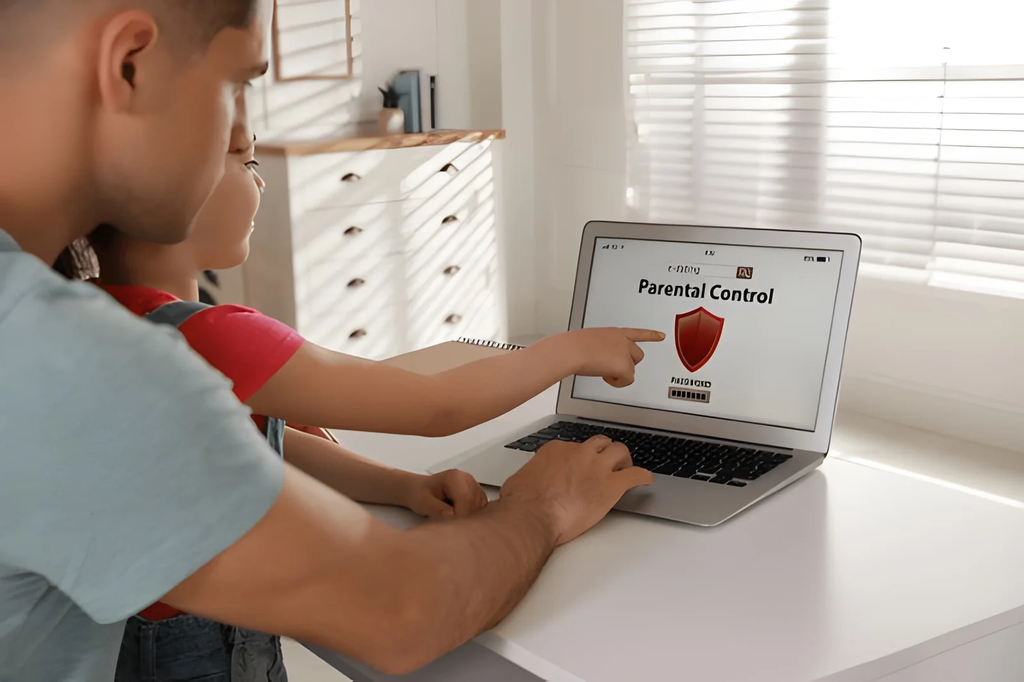
You set a time limit on your child’s tablet. Then they watch videos on the smart TV. You block adult content on the phone, and the games console ignores it. You turn off voice purchases on the speaker, and a friend’s visiting device connects to your Wi-Fi anyway. Smart homes are full of doors, and most parental controls guard only one. If you want to know how to set up parental controls for smart devices, think in layers instead of gadgets. This guide explains a three-layer method: the device itself, the account behind it, and the Wi-Fi network around it. You will find a quick answer, a layer table, a device-by-device setup table, a five-step routine, a bypass test, and a short FAQ. Set aside an hour, and keep your child’s age and your family’s rules in mind.
How Can You Set Up Parental Controls for Smart Devices?
Set controls at three layers: on each device, on the child’s account, and on your home router. Create a child profile or supervised account, set screen time, content filters, and purchase limits, and use router controls to cover devices that lack their own settings. Then test the setup to find gaps.
What Are the Three Layers?
Parental controls generally offer three features: scheduling, content filtering, and limits on screen time and access. Each layer applies them differently.
| Layer | What It Controls | Best For | Gap |
|---|---|---|---|
| Device | Settings on one phone, tablet, speaker, or console | Apps, downtime, purchases | Must be set on every device |
| Account | A child profile across devices | Content, approvals, location | Works only where the child signs in |
| Network (router) | Internet access for all connected devices | Consoles, smart TVs, guests | Less control over what happens inside an app |
Router-level controls help with unmanaged devices, such as consoles without parental control apps and smart TVs in shared spaces.
How Do You Set Up Common Devices?
| Device | Where to Start | Main Controls |
|---|---|---|
| iPhone, iPad, Mac | Family Sharing plus Screen Time | Limits, content, purchases, communication |
| Android phone or tablet | Google Family Link, which supervises children under 13 or the age set in your country | Screen time, app approval, bedtime |
| Amazon Echo | Amazon Kids through the Alexa app | Time limits, content filters, purchases |
| Google Nest speaker | A supervised Google Account through the Family Link app | Filters and downtime |
| Apple HomePod | The Home app, with voice recognition for the child | Personal requests and profiles |
| Smart TV, console | Built-in settings plus the router | Age ratings, play time, purchases |
| Wi-Fi router | The router app or admin page | Schedules, filters, pausing devices |
What Is the Five-Step Routine?
- List every device. Include speakers, TVs, consoles, tablets, and old phones.
- Create child accounts or profiles with the right age.
- Set limits. Start with bedtime or downtime, content filters, and purchase approval.
- Add router rules. Apply schedules and filters, and name each device so you recognize it.
- Write down the family rules and explain them to your child. Agreement works better than secret control.
What Is the Bypass Test?
Controls fail quietly, so test them.
- Sign in as the child on each device, or use a test profile.
- Try a blocked site, an over-limit app, and a purchase.
- Switch from Wi-Fi to mobile data. Does the control still apply?
- Connect a spare device to the guest network.
- Check whether the child can reset the device or create a new account.
- Fix each gap, then repeat every few months.
Which Mistakes Should You Avoid?
Do not rely on one layer. Do not share your own passcode or leave it saved on the child’s device. Do not forget voice purchases on speakers. Do not set limits once and never review them. A seven-year-old and a thirteen-year-old need different settings.
Frequently Asked Questions
Do parental controls work on all smart devices?
No. Coverage varies, so combine device, account, and router controls.
Can my child bypass them?
Often, with a new account, a factory reset, or a different network. The bypass test catches most gaps.
Should I tell my child?
Yes. Explain the rules and the reasons, then loosen them as they show responsibility.
Bottom Line
Parental controls work best as layers: device, account, and network. List every device, set age-appropriate limits, test for gaps, and talk with your child. A setup your family understands lasts longer than a secret lock.
For setting up parental controls must visit https://designmode24.co/